
O&P HUB Version 8 – VPN Setup Instructions
With Version 8 we changed VPN server which requires SoftEther VPN client.
If you need to re-install the SoftEther VPN Client, please use this link … Click Here
Setup Instructions:
- After downloading, Open/Run the installer
- Select Component: ‘SoftEther VPN Client’ ; Platform: Windows
- Complete the installation/setup. After it finishes, click [Finish] to open the ‘VPN Client Manager’
- Double Click on [Add VPN Connection]
- Click [Yes] to ‘Do you want to create Virtual Network Adapter’
- For ”Virtual Adapter Name:’ leave the name as ‘VPN’ then click [OK]
- Next, Double Click on [Add VPN Connection]
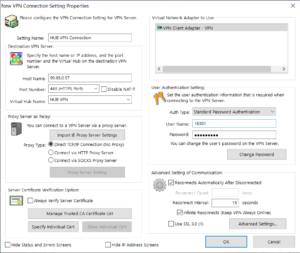
- In the ‘New VPN Connection Setting Properties’ window enter as follows:
- Setting Name: HUB VPN Connection
- Host Name: 99.65.0.57
- Port Number: click on the dropdown arrow and select ‘443 (HTTPS Port)’
- Virtual Hub Name: HUB VPN
- Proxy Type: Direct TCP/IP
- Auth Type: Standard Password Authentication
- User Name: {Enter your current VPN username}
- Password: {Enter your current VPN username}
- Click [OK]
- Double Click [HUB VPN Connection]
- Re-start your computer
You are all done!
Need more help with setup?
Download the instructions with screenshots from … Here
Need more help with connection issues?
Visit our connection troubleshooting page … Here